
I have always thought of building products of my own, not just designing but also shipping the actual product. With the rise of AI tools like Claude, Cursor or Antigravity, I thought of giving it a try and build something of my own.
In this article, I’m sharing the workflow I used to convert my designs into a fully functional android app, while still keeping ownership over the final output.
Workflow
1. Designing all the screens and components in Figma.
2. Building a strong design system where all the colors, type styles and spacing values are tokenized.
3. Creating a Plan/PRD in the AI tool - explaining the entire app.
4. Handing off the designs to the AI via Figma MCP.
5. Fixing bugs.
6. Creating the API and share with others.
What I created?
So I thought of building something which I could really use of daily. After giving a thought on it I realised that there are three apps that I use daily one is Notion (for taking notes), then there is Timer app (for working in a set time duration with breaks in between) and there is Eisenhower matrix app to arrange my to-dos according to the priority.
The problem is:
Switching between apps constantly while working makes things unorganised and distracting.

So I built Pace, a simple app where all these things exist together in a minimalistic and organised way, so that there is no longer need to switch between different apps while working.
*I used Antigravity IDE and Figma MCP for this project.
Step 1: Designing in Figma
Creating notes
Pomodoro timer
Eisenhower matrix
The Eisenhower matrix is a decision-making framework that helps you organize tasks by urgency and importance.
To make this actionable, the interface is divided into four quadrants:
Step 2: Building AI friendly design system
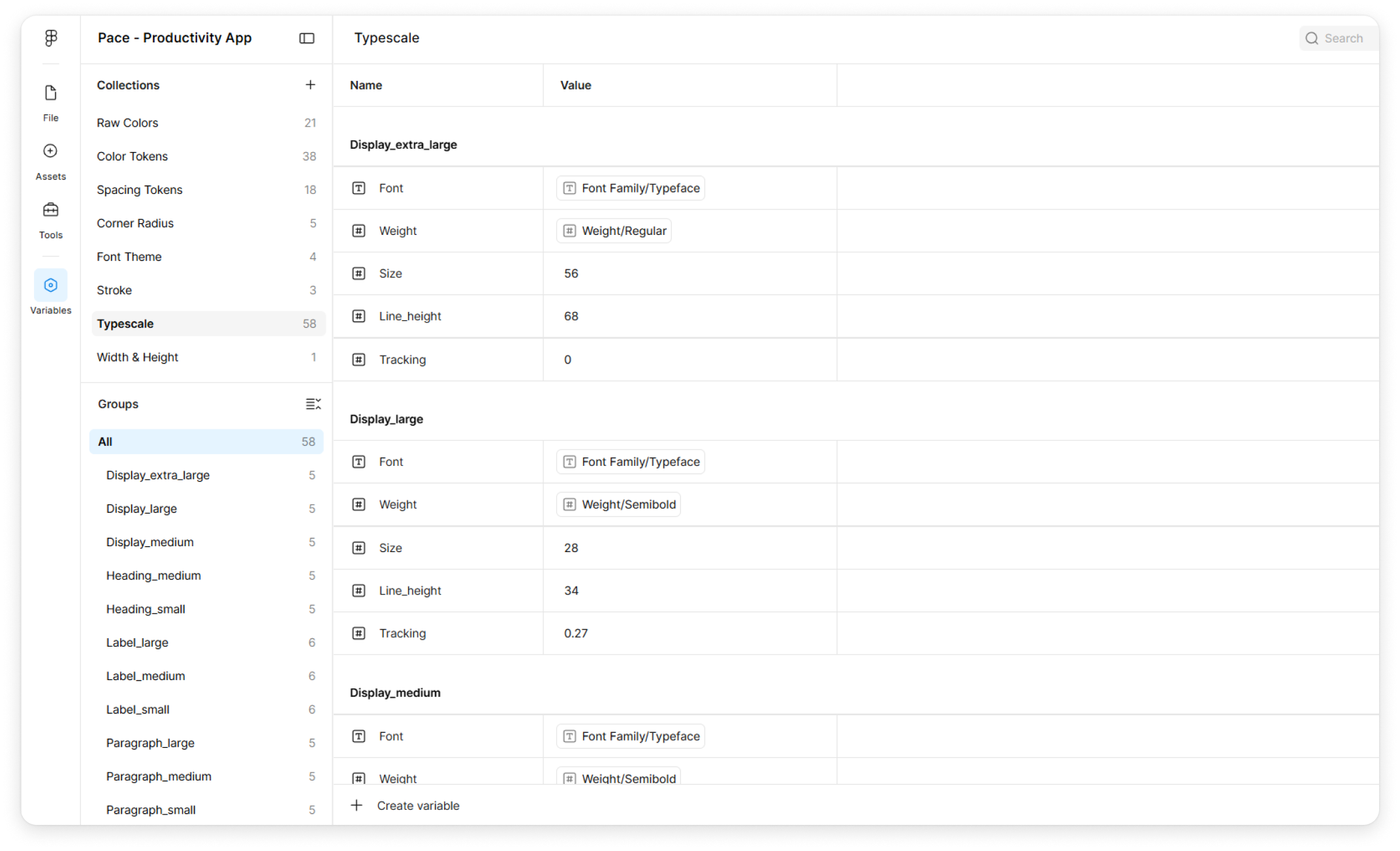
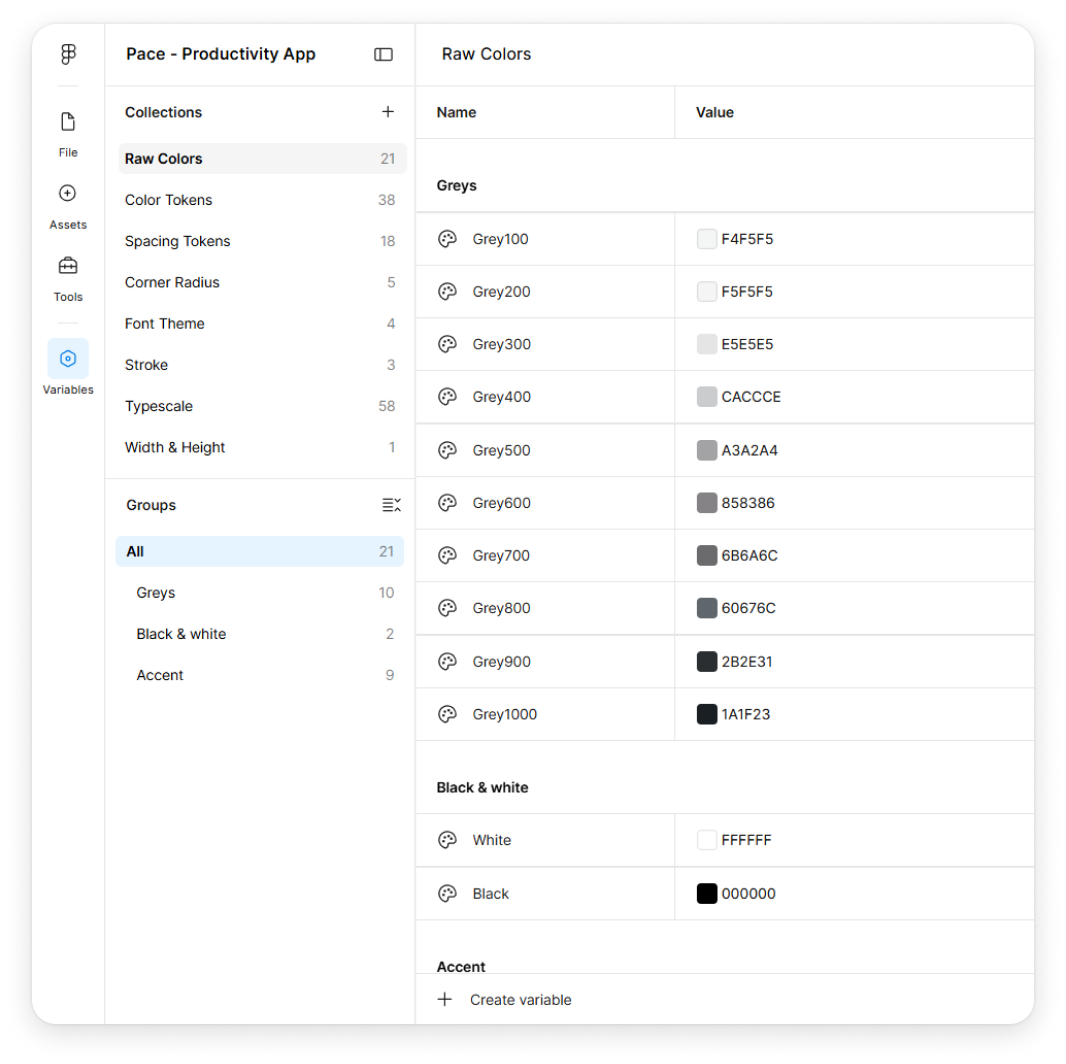
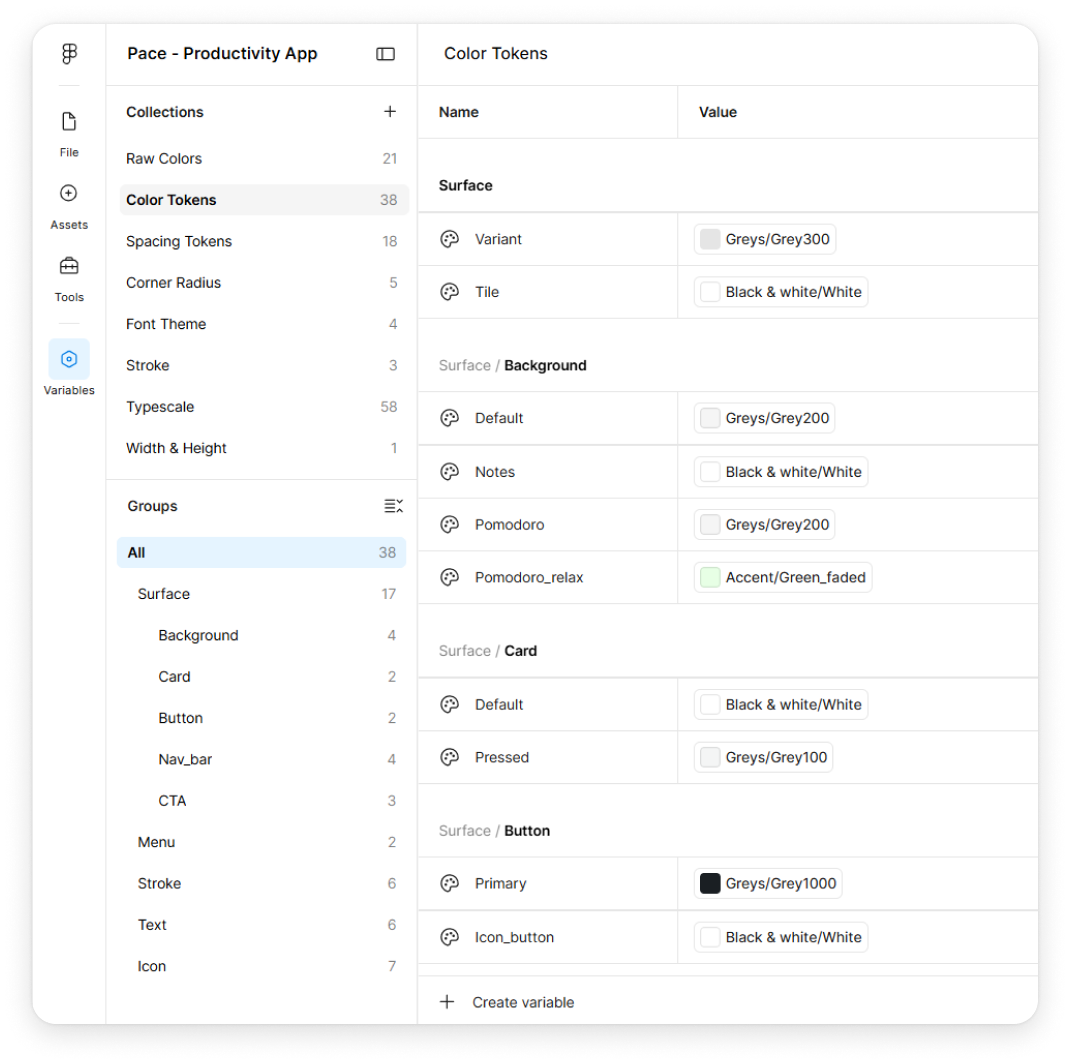
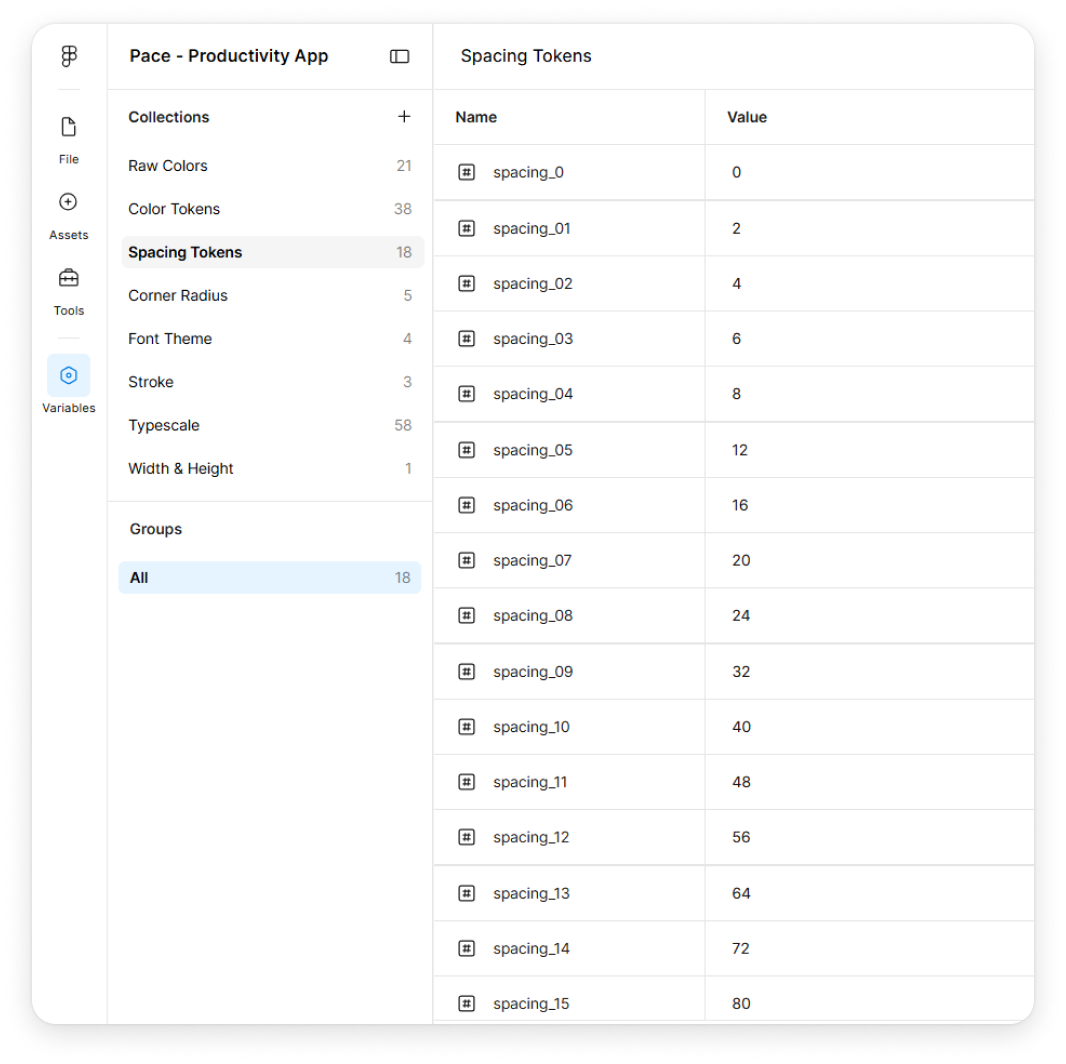
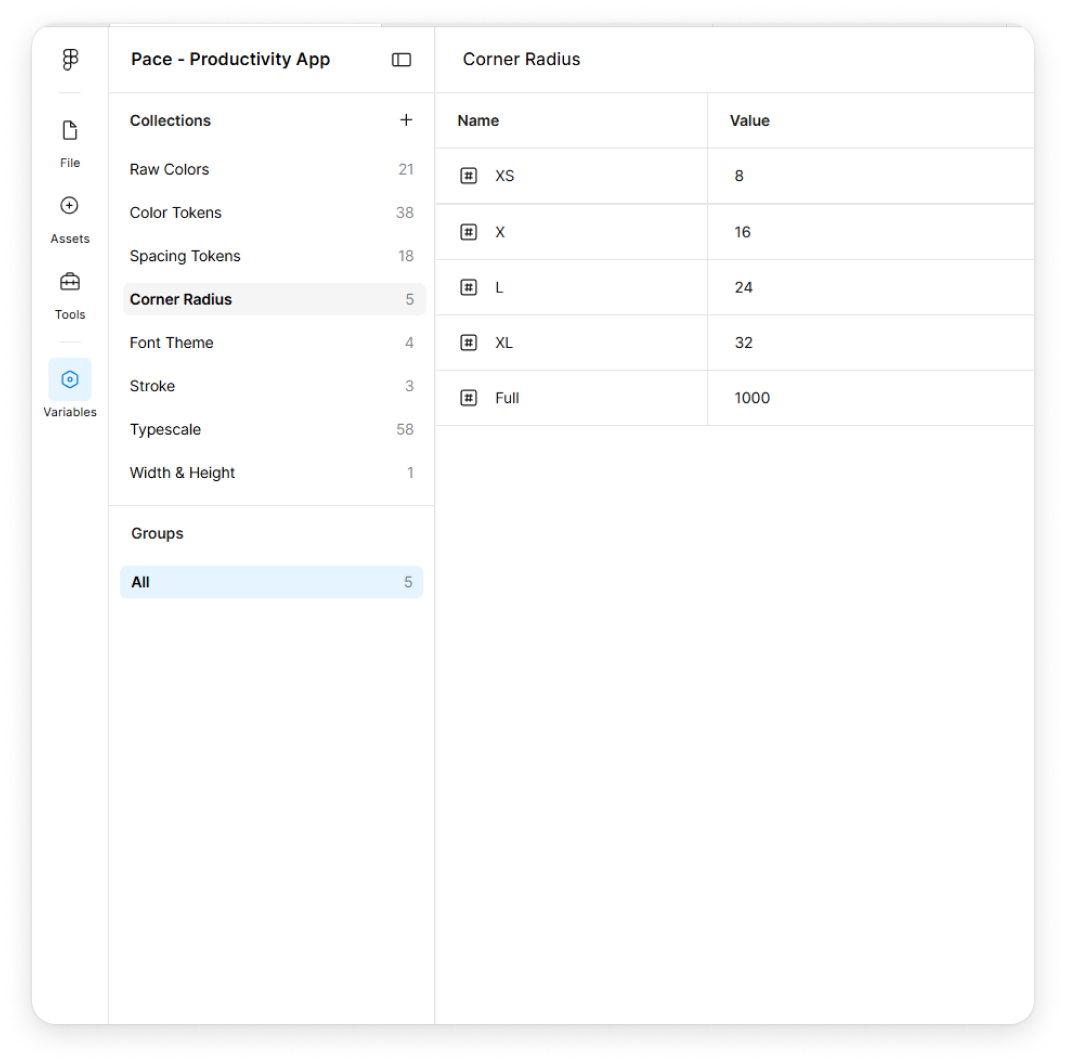
While designing screens, I make sure every color, spacing, corner radius, and typography choice is mapped to the design system. This way, the design carries clear and consistent information.
This is important because AI relies heavily on these patterns. When the design system is clean and consistent, AI uses this information to produce cleaner results.
Typography tokens
Color tokens and variables
Spacing & Corner Radius tokens
Step 3: Creating a Plan/PRD using Antigravity
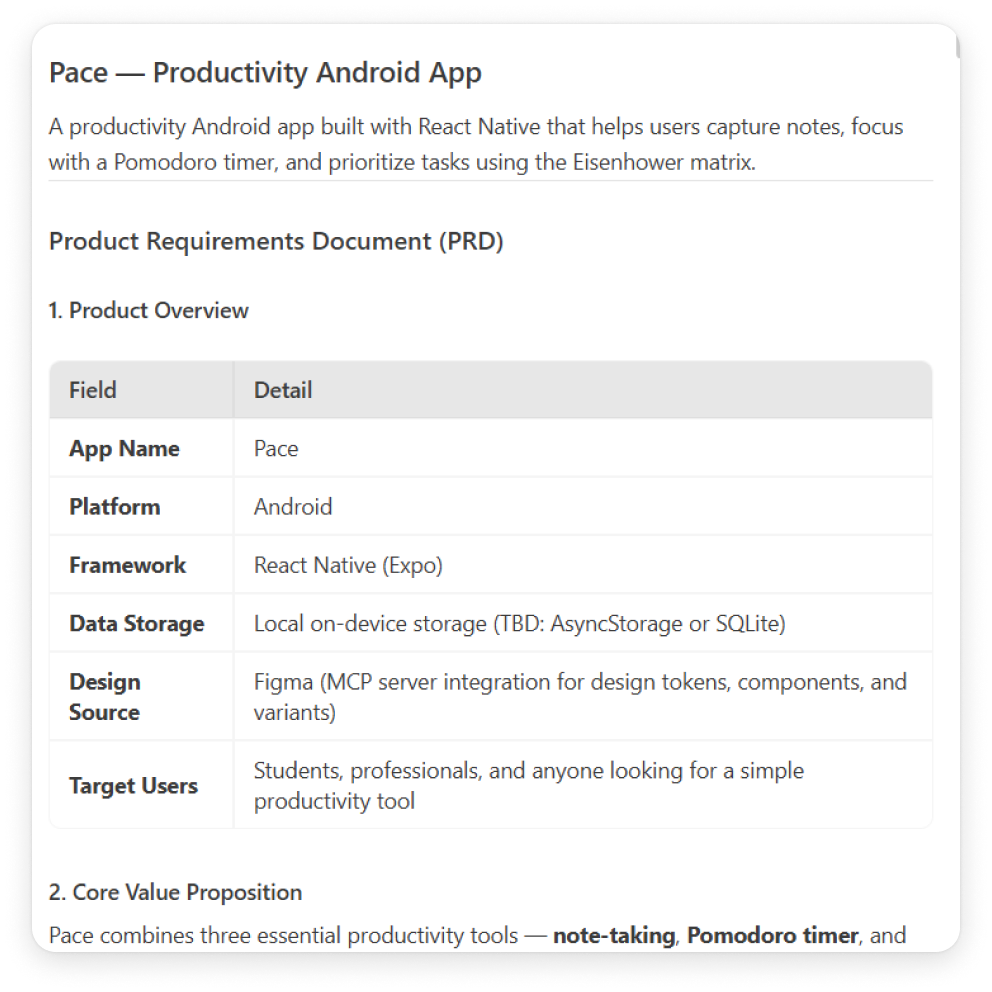
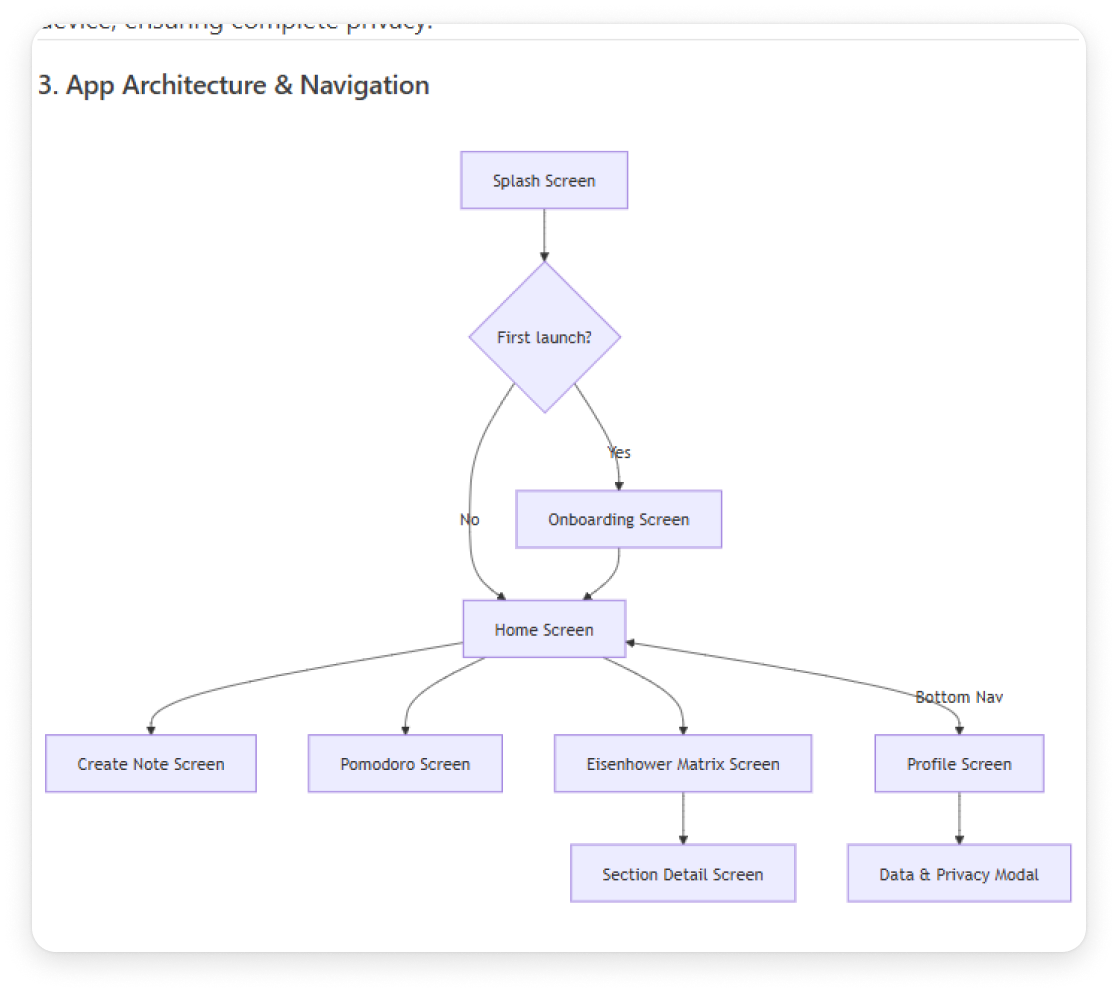
The very first thing I do after opening the AI IDE is to create a PRD for my project. I explain elaborately about what my app do, how it functions, where the data will be stored, basically everything and then ask it to create a plan or PRD first so that I can read it and verify if the AI have understood properly what I want to built.
Step 4: The Handoff
At this stage, I share the Figma frame link with Antigravity via Figma MCP and clearly explains what needs to be built.
Along with that I also ask Antigravity to extract variables from Figma and map them correctly into .css file. This helps ensure that the generated components stay aligned with the design system and maintains consistency.
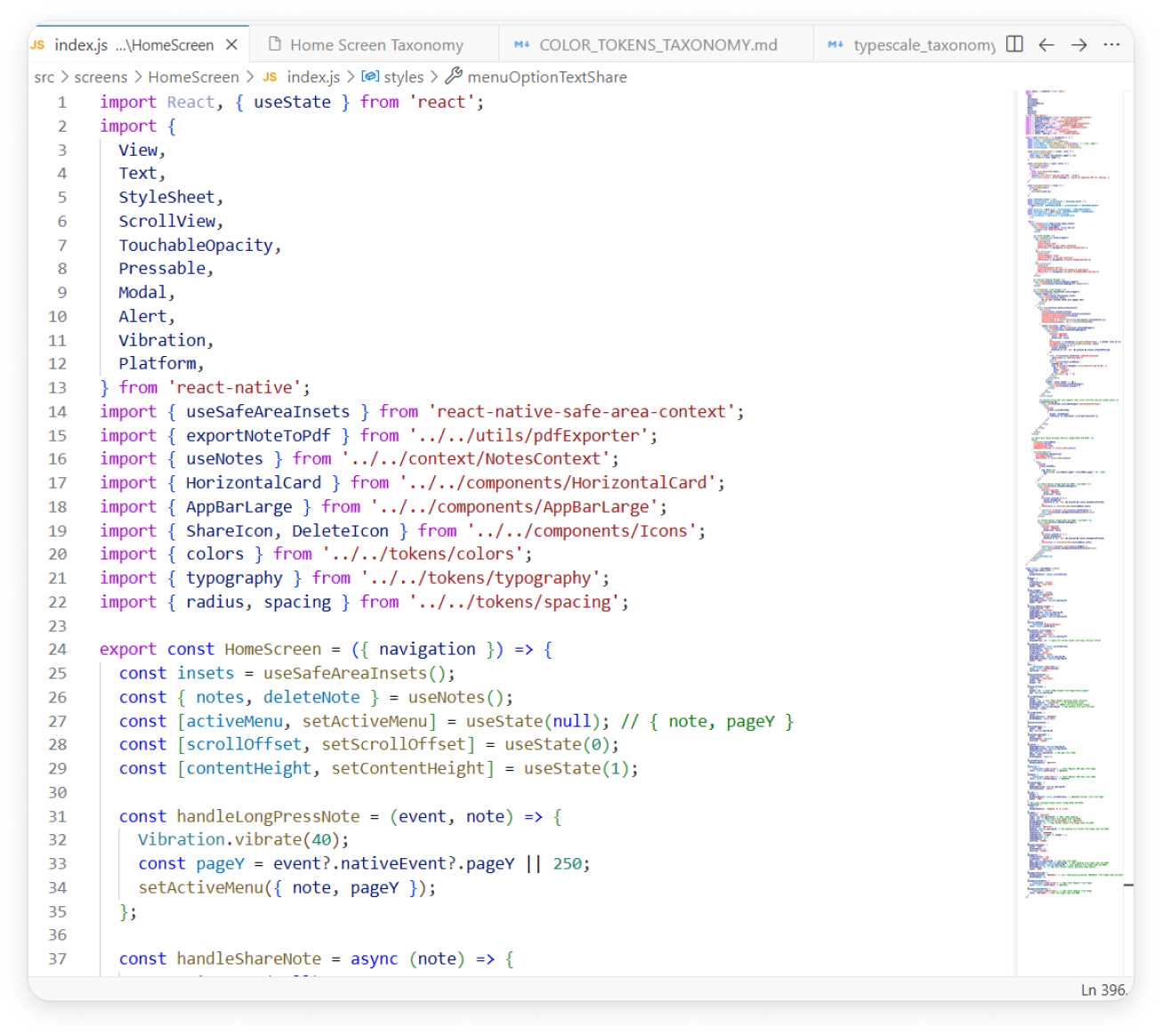 An example of importing the HomeScreen
Step 5: Fixing bugs
Even after doing all this, the AI still makes mistakes and the app does not always functions as you intended. So at this stage I try to fix all the bugs whether it is UI faults or functionality problem.
It can be done in two ways:
Step 6: Building the APK file
After building I asked Antigravity to build the .apk file for the app on Expo. It can be done simply done running down some commands from the terminal after logging in to Expo.
After the build is complete, the app can be shared easily with others.
Usability testing
So after the build was complete and the .apk file was created I have shared it with some users to conduct a usability testing and here is what I have found:
Notes sharing
The problem - When users attempted to share a note, the app exported the content as simple plain text. This stripped away all structural formatting that is - heading, sub-headings, and lists became indistinguishable from standard body text, ruining the visual hierarchy.
The solution - I have updated the export logic to automatically convert the notes into PDF format upon sharing. This will ensure that the exact styling, spacing and visual hierarchy will remain preserved for the recipient.
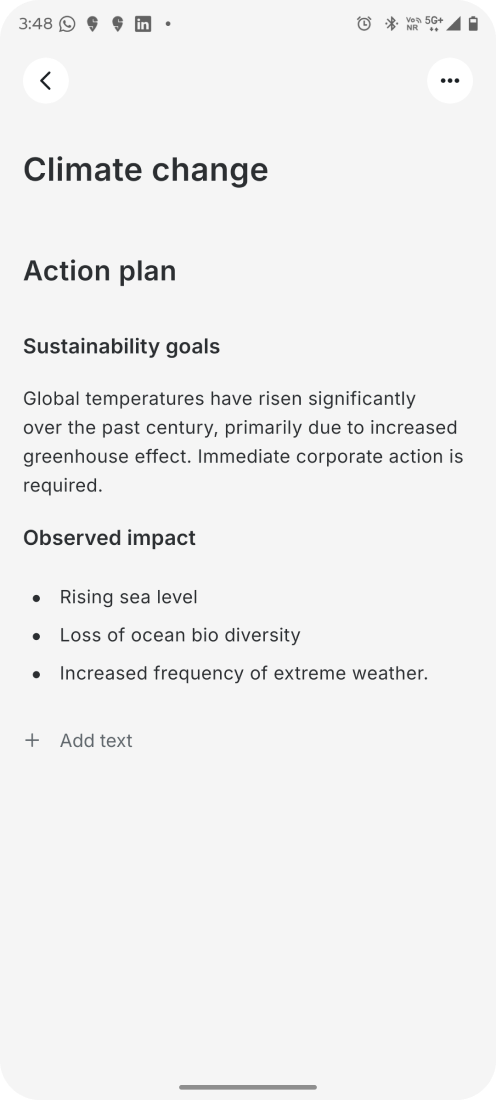 Notes written in app
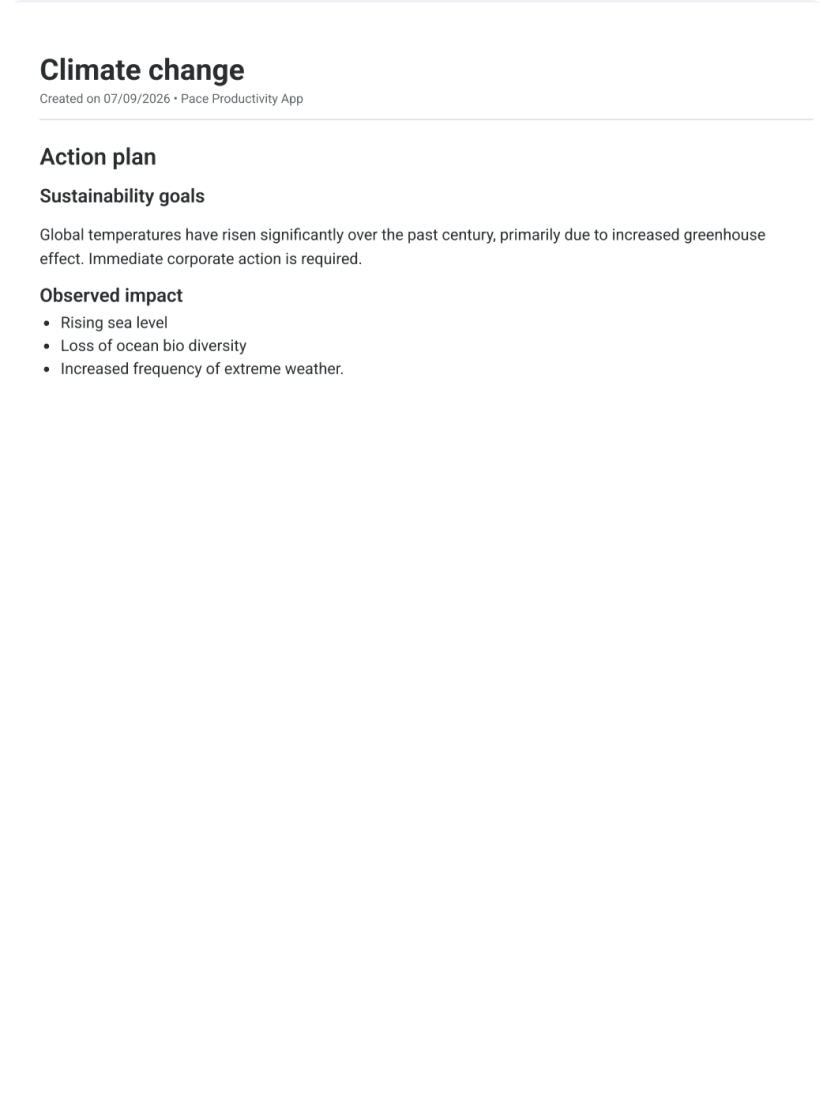 Pdf version after sharing
Final thoughts
This is my workflow for shipping products using AI.
It saves a lot of time by letting AI handle most of the coding, while still giving me strong control over the final experience. More importantly, it allows designers to build simple products without depending heavily on developers.